The easiest method to backup Cisco routers and Switches would be when you are logged onto it using a tool like HyperTerminal either via telnet,ssh or via console.
For information on how to backup config on a cisco router or a switch using TFTP click here
The following procedure explains how to backup cisco switches or routers running-config using HyperTerminal.
Hyperterminal is a console / terminal emulator program which has the capability to capture text from the terminal to which it is connected to. This is the feature that allows us to backup the Cisco IOS running-config.
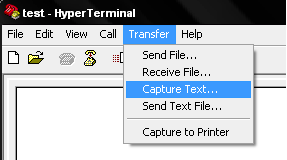
Logon to the privilege Exec mode on the router or switch using Hyperterminal. Once in, click "Transfer" from the Main menu and select "Capture Text"
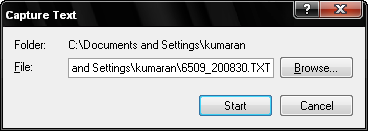
Now, select the location and the filename to which the config needs to be saved and click "start"
Now, do a show running-config
ciscorouter# sh run
Press Space bar on your pc until you reach the end of the running-config. This should allowed the HyperTerminal console to capture all the text. Clic Transfer again and click "Capture Text" and "Stop"

This will stop the capture. Open the file and remove all the lines (like the ones showing the "sh run" command typed) and simply save the file.
Restore the config
Ensure that you have removed all the lines that starts with "AAA" to ensure the security commands doesn't lock you out.
To restore the config, open the saved config file and copy all the text in the file ( in Notepad, Edit – "Select All" & "Copy")
Now, on the console, click Hyperterminal console connected to the router, click Edit and select "Paste to host". This copies the config onto the router and once done, returns you to the prompt. Verify if the running config is updated and simply write to the memory so the running-config is updated to the startup config.
ciscorouter# sh run
ciscorouter# wr mem
Building Configuration
[OK]
Thats it. All back to business. This restore can also be done on another router if you want to replace with a replacement unit.


Leave a Reply